Explore our extensive range of noise cancelling headphones, including Bluetooth And wireless, designed to help you enjoy your favorite music on the go.
An experience made by Google. Seamless glass-aluminum body With smooth surfaces and easy-to-grip curved edges.
Unlock fast with Pixel Imprint. Vivid, cinematic display
A brilliant AMOLED screen, with true blacks and 16.77 million colors.
Battery lasts all day, charges fast. Get up to 7 hours of battery life in just 15 minutes.
Alienware, with its industry leading innovation, manufactures the best gaming PCs that provide their users with immersive and exhilarating gaming experience.
When you compare 4K HDR with ordinary screens, the difference is vividly clear
Using Sony´s Bravia TV technology, the Xperia XZ Premium plays 4K HDR content that’s so clear and lifelike, it takes your breath away. Watch the video to learn more about the immersive experience of this breakthrough technology.
RouterSploit is a powerful exploit framework similar to Metasploit, working to quickly identify and exploit common vulnerabilities in routers. And guess what. It can be run on most Android devices.
I initially covered RouterSploit on Kali Linux and macOS (OS X), but this tutorial will walk you through setting up RouterSploit to work on an unrooted Android phone. This allows you to pwn any vulnerable router you can connect your smartphone to. Doing so takes seconds and shows the power of running Debian Linux tools on the device you carry everywhere.
RouterSploit vs Routers
Routers are our gateway to the world. They route our internet traffic, encrypt our traffic to protect our privacy, and link us to other devices on our local networks and on the World Wide Web.
Most people take this wonderful device for granted, assuming once one is plugged in and providing the internet, the job of setting it up is done. Not knowing the router is actually its own Linux computer, most people simply leave the default password on the router's administrator panel or never bother logging in to install any security updates.
If this sounds like you, you should probably go change the password on your router before reading the rest of this tutorial.
Because routers are neglected, they frequently have commonly known vulnerabilities that can be exploited with the right program. RouterSploit takes advantage of the most common vulnerabilities and default settings, allowing you to quickly assess and exploit a router from any device the supports the Python script.
Debian Linux on Android
In order to run hacking tools on an Android phone, most tools require root access, which is not always easily done or safe. In order to run RouterSploit on the best available phone, an app called GNURootDebian takes the work out of setting up a Debian system, which is what Kali is, on an Android phone.
We've got RouterSploit running on an unrooted Android!
Kali helpfully ensures that the majority of our dependencies are installed, so we'll need to install a lot more dependencies on our Android version of Debian to make sure we have everything we need. This method doesn't require root or any weird permissions and can be used to run Linux Python tools from an Android phone. While packet injection isn't supported, frameworks like RouterSploit work and are very effective.
Using an Attack Framework on Android
The Android environment allows for a neat stack of wireless attack technologies to guide your tactics. Within one device, various apps will help you detect, connect to, and defeat any open AP. My "stack" of Android apps to defeat routers is as follows.
For detection and identification of wireless networks in an area, Wigle Wifi Wardriving allows you to see, log, and interact with any and all wireless networks transmitting in your area
For scanning of networks and identification of likely targets by manufacturer, IP address, and services available, Fing Network Scanner will scan the entirety of any network you are connected to and return detailed information about each connected device.
Once a device has been targeted on the network to attack, RouterSploit's Autopwn scanner will throw every available exploit at the target and see which stick, often taking less than a minute on a Samsung Galaxy phone.
Target variables are set.
Unrooted Android Burner Phones as Attack Platforms
Using powerful Linux frameworks on Android gives us another way to use something common to hack in plain sight. Even if someone knows what you're doing on your phone isn't normal, it's still a lot less suspicious than pulling out custom hardware to preform a task a generic burner Android phone can accomplish.
It is often said that the best weapon to use during a moment of opportunity is the one you know you'll have with you, and hacking tools are no exception. With the ability to quickly set up an Android phone for offensive use, GNURoot Debian allows anyone to begin auditing router security without any specialized tools. Soon, you will learn to seize control of these precious, internet-giving devices while appearing like you're still looking for Pokémon.
What You Need to Get Started
The beauty of this setup is that you just need an Android phone. I'm using a Samsung Galaxy S8 because carrying around a giant piece of curved screen glass reminds me of how fragile life is, but you can use any Android phone that supports GNURoot Debian.
Step 1Installing GNURoot Debian
To begin, we'll install GNURoot Debian, which will give us the ability to run Debian Linux on an unrooted Android device. In the Google Play Store, search for GNURoot Debian or follow this link.
You can tell he's a good time because of the goatee.
Download the app (at 60 MB, it may take a bit on a slow connection). Once the app is installed, it's time for your first run. On starting for the first time, you'll see the Debian environment being set up as a bunch of text scrolling very quickly across the screen.
More dependencies loading.
Let the setup complete for a few minutes, and you should see the following screen when installation is complete.
Debian Linux is running on Android.
Once Debian Linux is installed, it's time to start installing dependencies.
Step 2Installing Dependencies
Debian Linux on Android doesn't come with any special dependencies preinstalled like Kali, so we'll have to start from scratch on a lot of things. In particular, we'll need Python to run our desired module. First, let's update our version of Debian with the following.
apt-get update
Next, let's install some of the tools we'll need to fetch and install RouterSploit:
Upon installing RouterSploit, you'll want to run it for the first time to check that it's working. Navigate to the home folder by typing the following.
cd routersploit
Then run the Python script with this:
sudo python ./rsf.py
After a few seconds to load, you should see the RouterSploit splash screen. From here, the interface is similar to Metasploit, with the primary commands being:
use (module)
set (variable)
show options (shows module options)
check (checks to see if target is vulnerable to exploit)
run (runs the exploit module against the target)
The module we'll be running is Autopwn, which we can select by typing the following.
use scanners/autopwn
This will open the Autopwn scanner to begin scanning a target.
Step 5Setting & Prosecuting a Target
With the Wigle Wifi Wardriving app installed on your Android phone, it's easy to see nearby wireless networks. As soon as you gain access to a Wi-Fi network, either an open network or by gaining the password, you'll be able to scan the network to find all devices on it with Fing or another network scanner.
Once you locate the IP address of your target, it's time to put it into Autopwn. To see the available options on any module, type the following.
show options
In this case, we'll be setting the target IP to that of the router we want to attack. To do so, enter this into the terminal:
set target IP_address_here
Here, we set the target for the Autopwn scan with the IP address of the target.
Replace IP_address_here with the IP address of the router, and hit enter. This should set the target to the router. To double check, type show options again. When you're satisfied with the result, type run and hit enter to begin the module. The module will run, presenting a list of found vulnerabilities at the end of the scan.
Here, we see a scanning run starting against a target.
Step 6Exploiting Found Vulnerabilities
When Autopwn finds a vulnerability, exploiting it couldn't be easier. After the scan is complete, type use and then copy and paste the path provided by Autopwn to the exploit. For example, running the exploits/cameras/dlink/dcs_9301_9321_auth_bypasswould be done by typing:
use exploits/cameras/dlink/dcs_9301_9321_auth_bypass
As before, we can set the target with:
set target IP_address_here
Once the target is set to our desired IP address, you can run check to verify the device is vulnerable. When you're ready to exploit, type run and the exploit module will run.
This device is vulnerable!
Warning
Even if the router is left completely undefended and is easy to pwn, that doesn't make it legal. Make sure you have permission to audit the router you're pwning, as the Autopwn scanner makes a lot of noise and may be detected by active security measures.
Tossing an old Android smartphone with a decent battery into your hacking kit can let you quickly map hundreds of vulnerable networks in your area just by walking or driving by them. The practice of wardriving uses a Wi-Fi network card and GPS receiver to stealthily discover and record the location and settings of any nearby routers, and your phone allows you to easily discover those with security issues.
Introduction to Wardriving
In 2005, hacker Albert Gonzalez and friends were wardriving along a Miami highway, looking for vulnerable WEP networks. They realized that major retailers like Bob's Stores, HomeGoods, Marshalls, T.J. Maxx, and A.J. Wright were using insecure WEP-encrypted wireless networks in their retail locations. Worse, these stores used the network to service the in-store credit card payment systems.
Albert and his accomplices cracked the passwords of WEP networks in stores owned by TJX Companies, soon pivoting into the Massachusetts-based corporate network and planting a packet sniffer. This sniffer siphoned 90 million customer credit and debit cards to a server in Ukraine, which then sold them on the darknet for around $11 million. Although it was clear that TJX was aware of the security issues around WEP network encryption, they thought it was unlikely someone would notice.
Wardriving can map networks it discovers to pinpoint vulnerable networks.
Wardriving as a concept has been around since the '90s, fueled by programs like NetStumbler. It turns out, you can do a lot with the data created from wardriving, and since then, everyone from hackers to location providers like Skyhook scan and log Wi-Fi networks worldwide.
In the early 2000s, Google got into the wardriving game and began collecting geotagged Wi-Fi data early in their Google Street View initiative. Led by engineer Marius Milner, the creator of NetStumbler, Google Street View cars began logging the Wi-Fi networks of people around the world, creating a directory of wireless networks tied to addresses and Google Maps imagery. This data also included information from networks which had been left unencrypted, causing Google a lot of legal trouble over privacy concerns and resulting in over $7 million in fees.
More recently, the US military, keen to avoid jamming of GPS (which causes drones to become confused and predictable), have been developing NAVSOP, or Navigation via Signals of Opportunity, as a way of determining your position from random nearby signals even when communication from traditional navigation systems have been cut off.
Wardriving as a Tactical Tool
In this guide, we will be using an Android adaptation of Wigle (Wireless Geographic Logging Engine), which will harvest our data and plug it into the Wigle.net database. Why search only your data when thousands of other people have already contributed?
Wigle Wifi Wardriving, a free Android app, shows the location, channel, encryption, and other important qualities of a Wi-Fi network without ever needing to connect to it.
First started in 2001, the Wigle.net website is a collective searchable database of all discovered networks that have been contributed by wardrivers over the past decade. With over 323,446,100 networks mapped to date, searching Wigle.net is a powerful way to perform a database correlation attack. You can also download your entire personal database at any time through the app, as it's stored on the Wigle.net server if you choose to upload it.
Our focus here will be on creating and linking a Wigle.net account with the Wigle Wifi Wardriving Android app (which we'll just call "Wigle Wifi" from now on) to allow us to build our own databases of wireless networks, as well as search a crowdsourced database when needed.
Because Wigle Wifi uses easily available hardware, no specialized computer is needed to conduct a detailed analysis of a target. Even an old Android phone will support the Wigle Wifi app. It's subtle and can be used with no trace, so this method can be used in any high-security location discreetly.
Like cellular triangulation, Wigle Wifi locates networks through combining multiple sightings of an access point. These sightings include precise GPS and signal strength measurements used to calculate the likely position of the router, often down to a few meters. From a signals intelligence perspective, this gives us the ability to run passive, undetectable reconnaissance against a target, and query to a massive database of geolocated APs contributed by other wardrivers to track down probe frames.
Step 1Setting Up a Wigle Account
Wigle Wifi is tightly integrated with the Wigle.net database and website. So before we even install the Wigle Wifi app, we'll want to create a Wigle.net account.
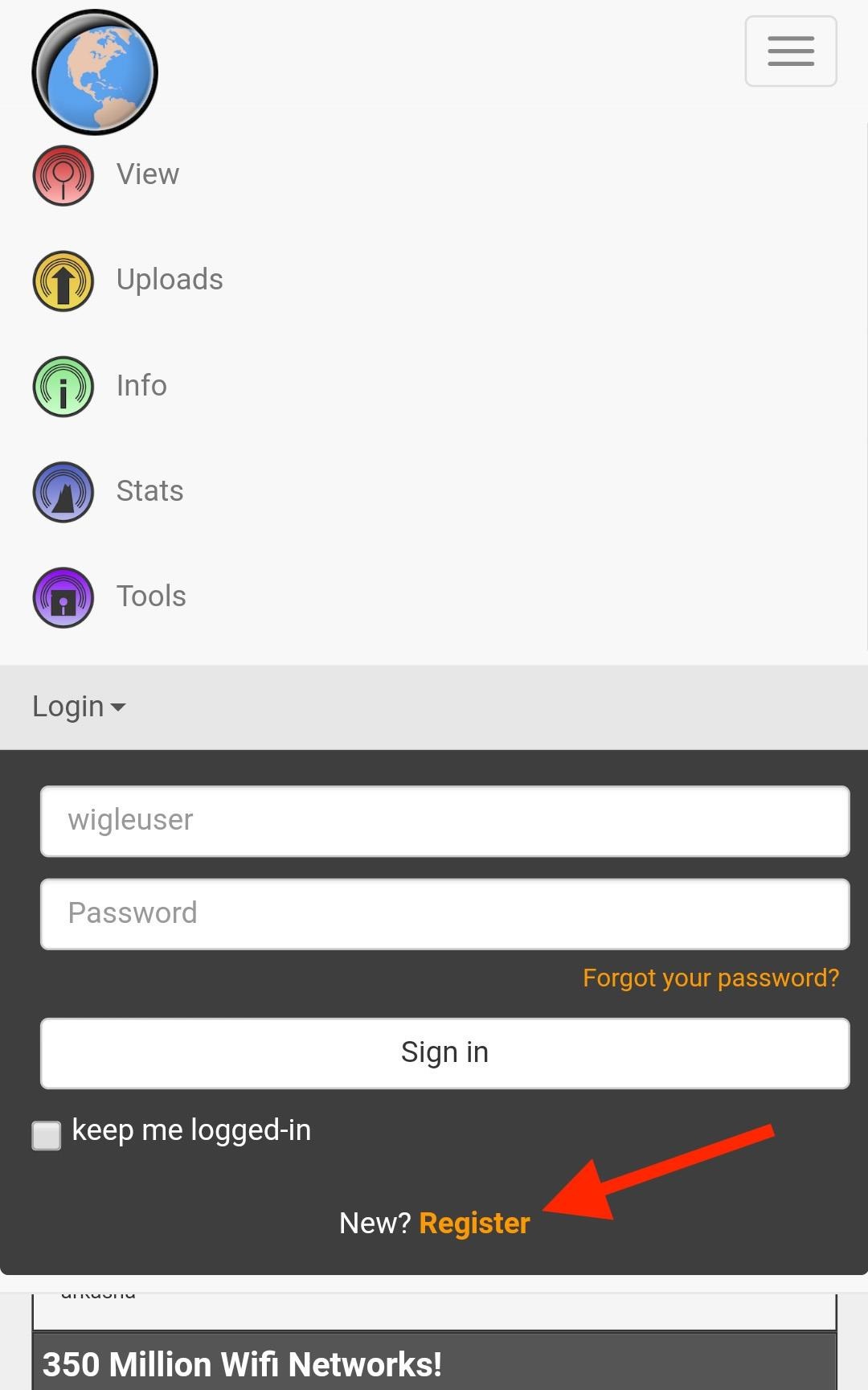
If you're on your computer, just navigate to Wigle.net in your browser and click on the "Login" button up top to show the "Register" option. In your phone's browser, after going to the website, tap on the hamburger icon, select "Login," then "Register."
Fill out the fields to create your free account. After that, remember the user name and password so you can input it into the Wigle Wifi app later. This will allow you to upload to the site and retrieve your entire database.
Step 2Installing Wigle Wifi
Wigle Wifi is available in the Google Play Store, so just visit that link to download and install it onto your Android device. You need Android 2.3 and higher, so this will literally work on any smartphone you have collecting dust around your place.
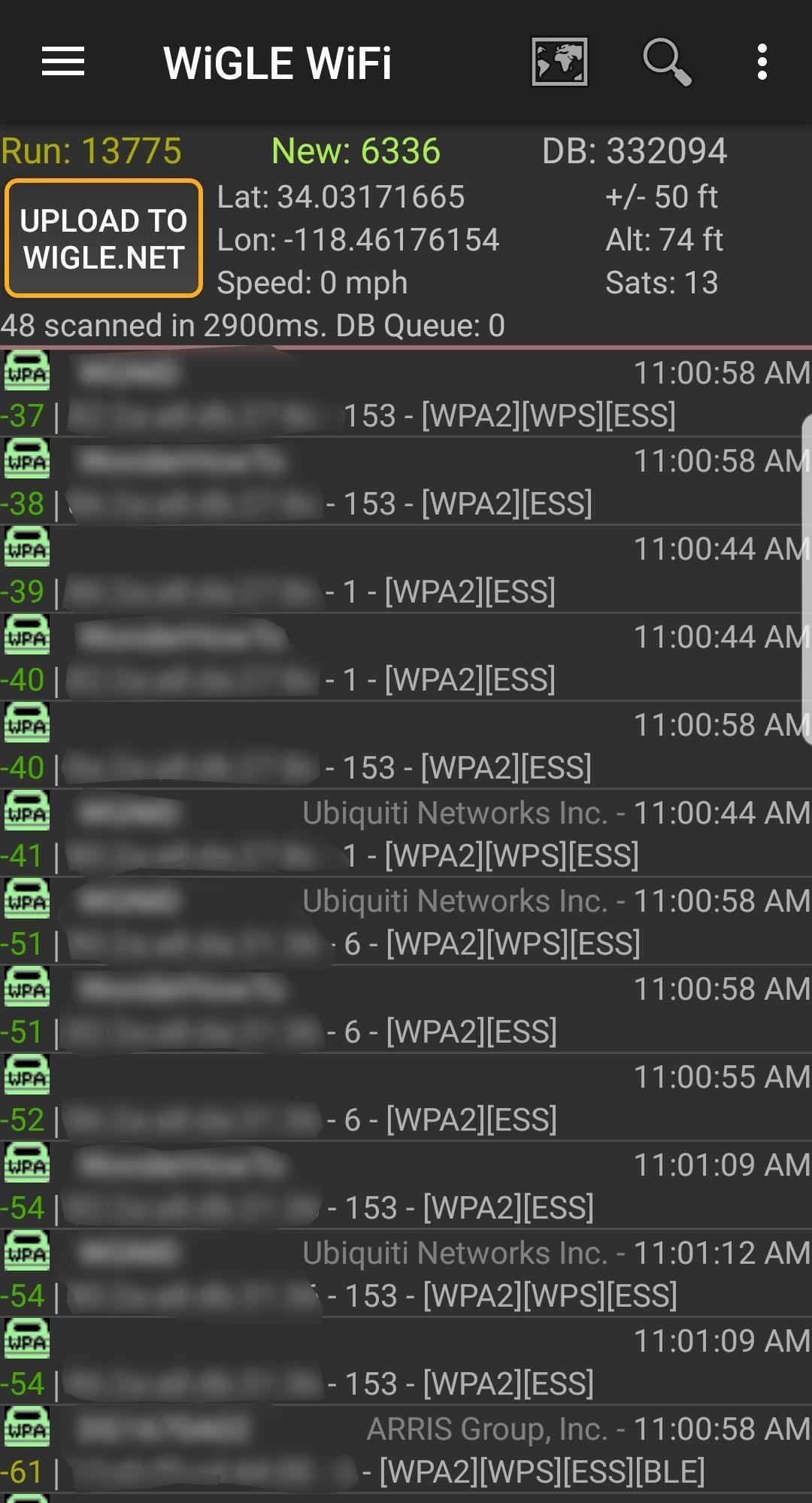
Using Wigle Wifi to find nearby networks.
Step 3Running Wigle Wifi on Android
Once you've got the app installed, open it to the main screen. Wigle Wifi is an aggressive app and will override settings to turn the Wi-Fi card on while it's running, so don't be surprised if your Wi-Fi turns on with Wigle Wifi running in the background.
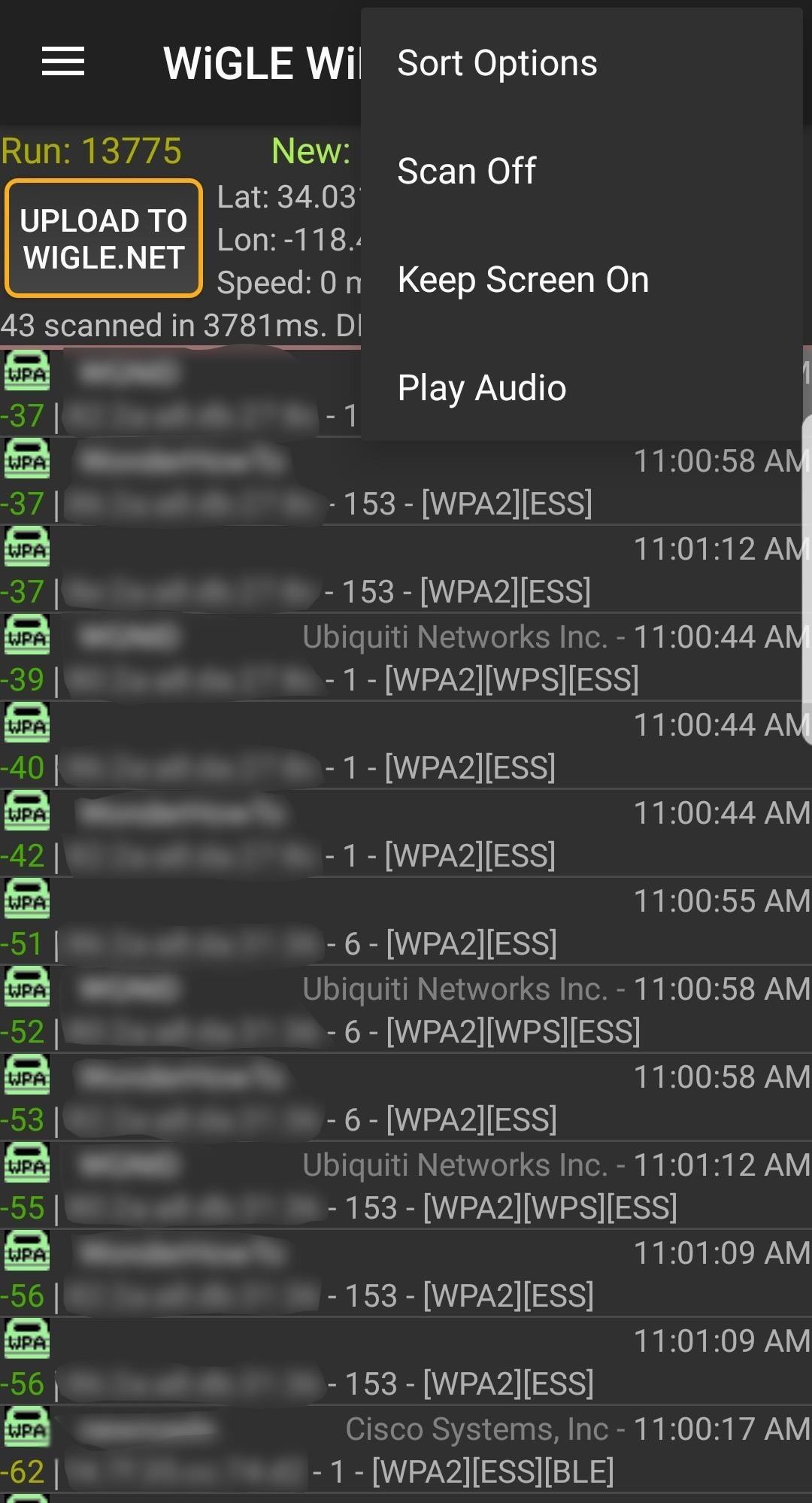
After granting the app all of the required permissions, a run should start right away. If not, make sure you're on the "Network List" page (via the hamburger icon), then tap on the three-dots icon in the top right. Select "Scan On" to begin scanning through channels and collecting wireless information. This will immediately begin displaying wireless networks in the area.
The "Network List" screen with scanning off.
Keep in mind, Wigle Wifi will consume extra power while scanning and logging networks. The more often you run it in the background, though, the better location accuracy you'll get. You can go back to the same three-dot menu and select "Scan Off" when you don't need it.
Step 4Adjusting Wigle Wifi's Settings
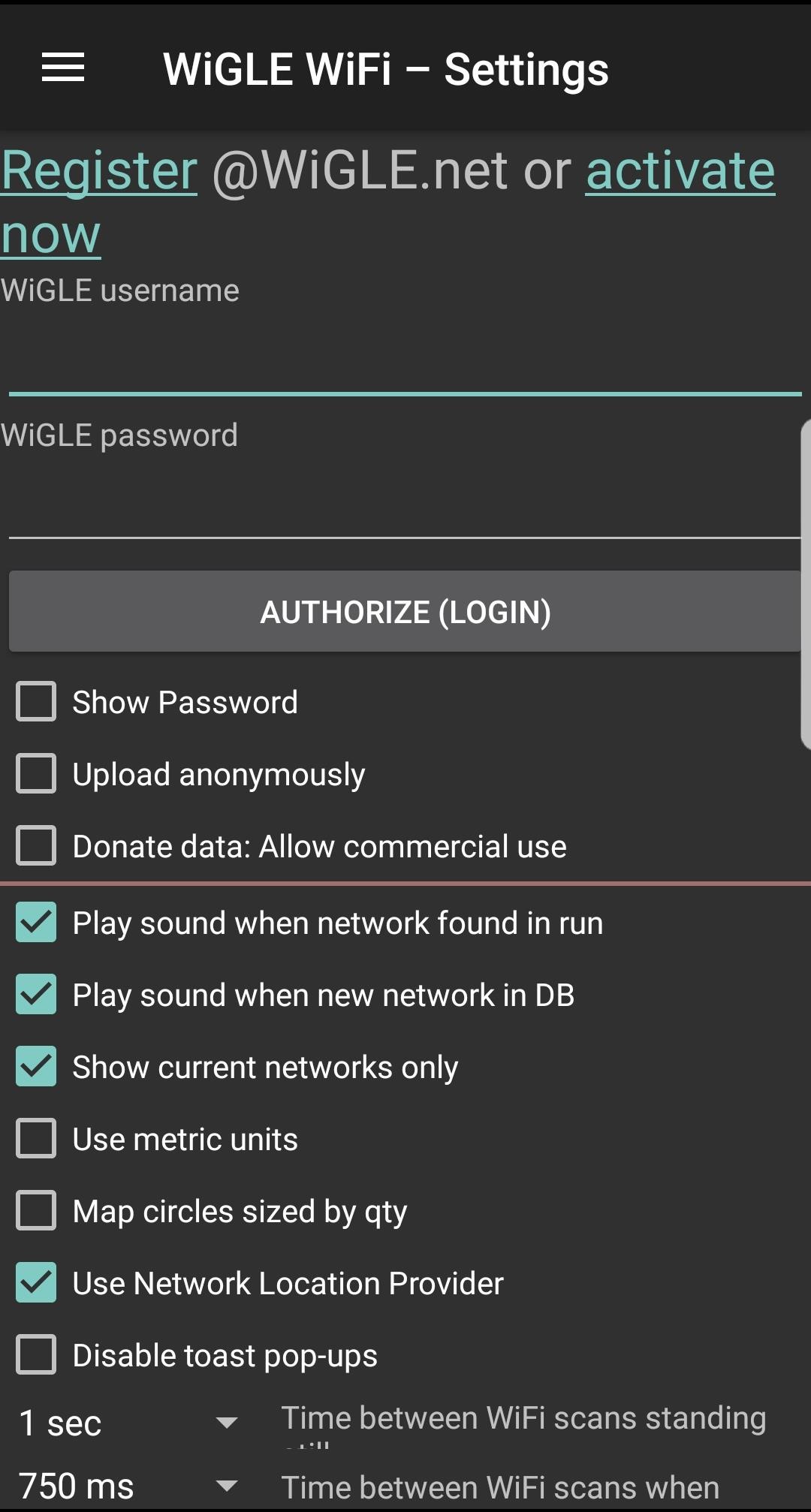
To adjust the settings, you can access the menu by tapping the hamburger icon on the top left and selecting the "Settings" option. At the top of this menu, you can enter your Wigle.net login and password.
Here, you can also adjust the display and run options, as well as specific options like how to increase or decrease scan times in response to changes in speed. Increasing the number of scans will drain the battery faster but capture more networks if you're moving quickly.
Step 5Backing Up Your Runs from Wigle Wifi
Make sure you've entered your Wigle.net login at the top of the "Settings" menu item, then back up your data in the app by tapping the "Upload to Wigle.net" button on the Network List page. When you upload your runs, you'll always be able to view and download them later on Wigle.net.
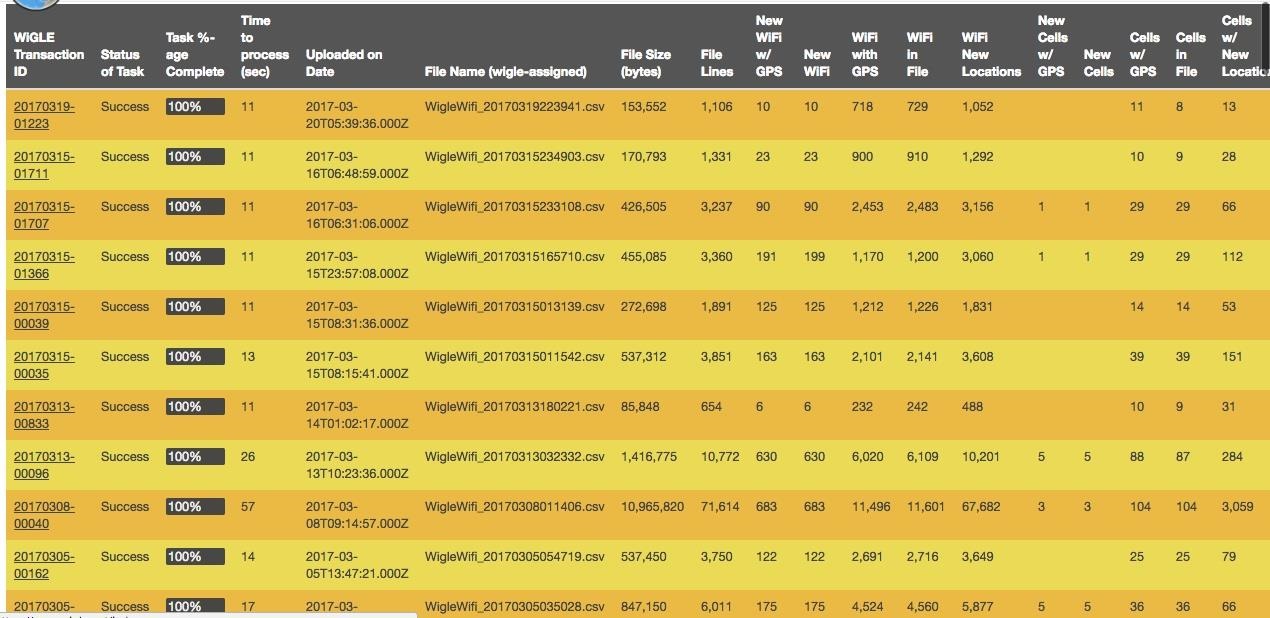
Here, we see many runs with number of networks and other information displayed.
Step 6Using the Wigle.net Website
To easily search your entire database, as well as other contributed data, we'll open Wigle.net in a browser. You can do this on your phone's browser or your computer's browser.
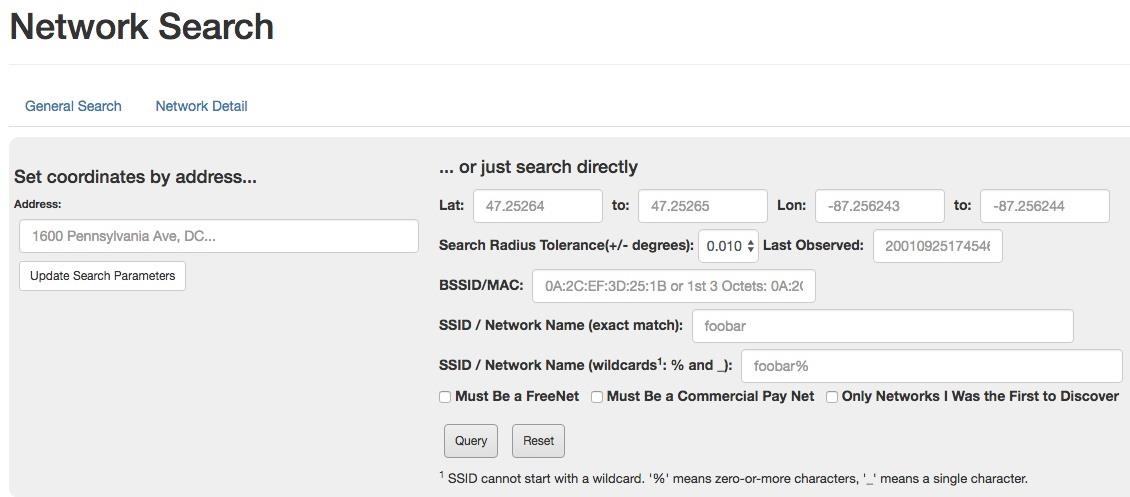
There are many ways to search for information on Wigle.net. In the Wigle Wifi app, you can search for nearby networks, but on the website, you can search the entire database of contributions. The most obvious settings are under the "Search" function that appears after you log into your account.
Searching the Wigle.net database for a network.
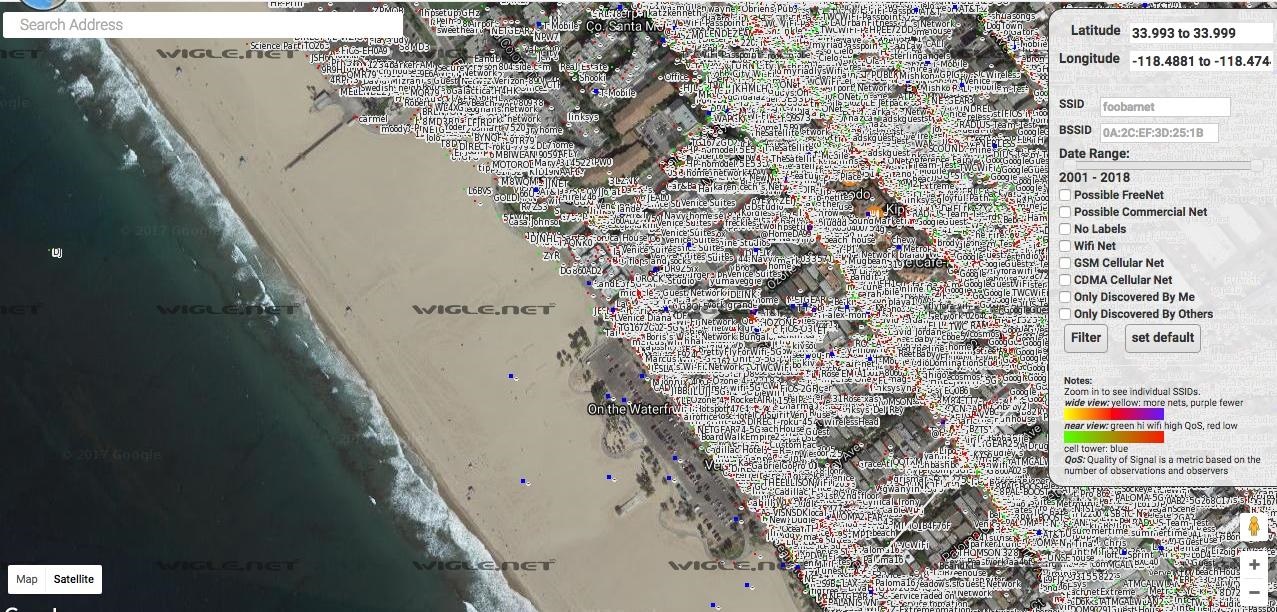
For a more visual overview of the target, check out the "Maps" section. You can type in an address and adjust overlay filters to create a graphical map of the target with wireless data overlayed.
Lots of people wardrive, and there is a lot of information already out there.
Selecting on a network will give you more information about it. You can filter networks with the list of options on the right of the screen. Look up your address and see if your router has been logged!
Step 7Searching Local Queries in Wigle Wifi's Map
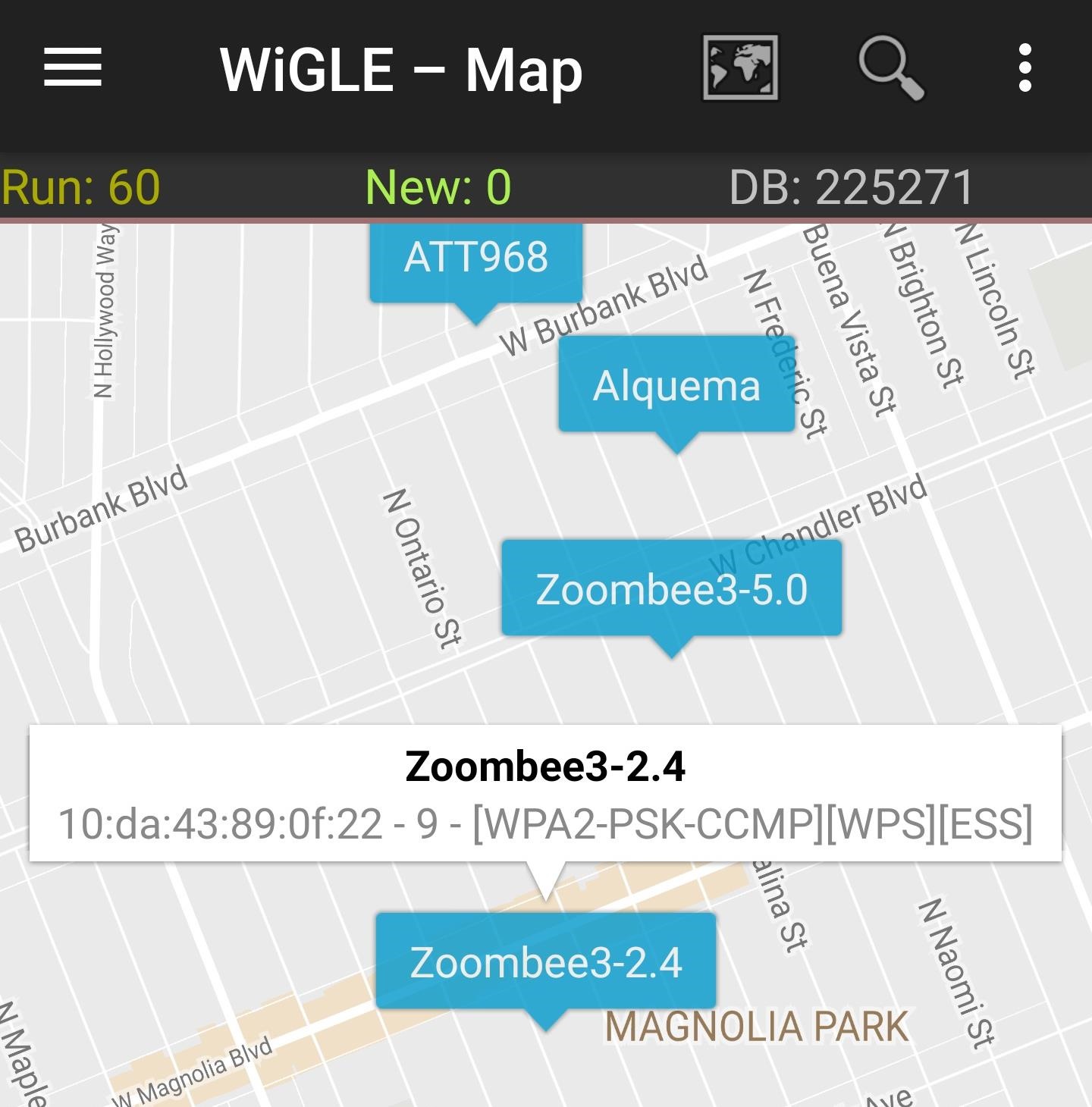
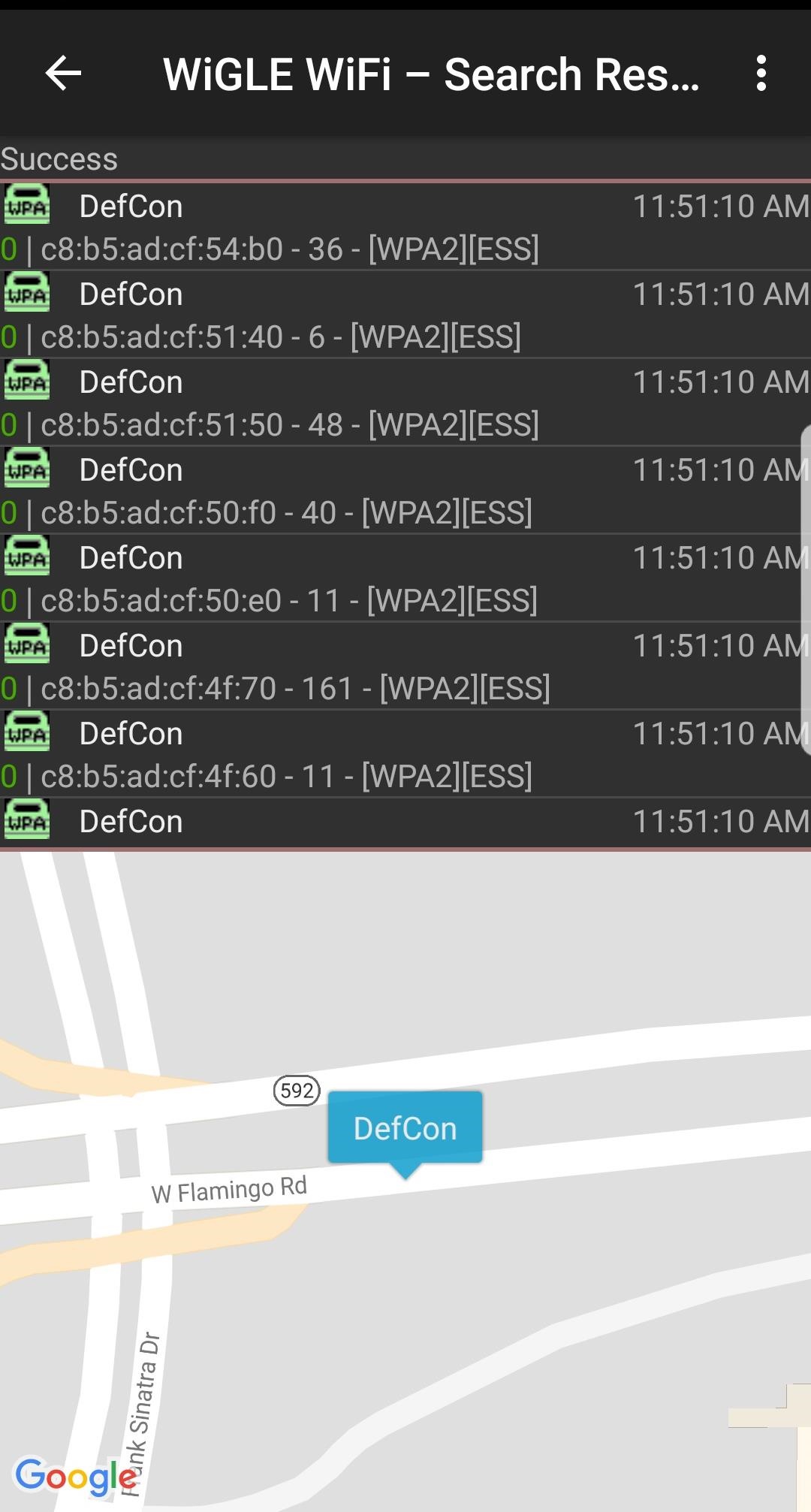
If you want to search a wardriving run on your phone rather than Wigle.net, you can do so (or watch results appear on the map live) by tapping the "Map" menu option. This will open a map of the area pinned to your current location and display nearby networks. Tapping on a network will bring up information about the manufacturer, the security used, and the channel and BSSID. Below, we see some mapped results from a local run.
Querying the local database on the Wigle Wifi app.
You can see how many networks you've collected in a run by selecting the "Dashboard" option in the menu.
Wigle Wifi lets you build your own database of networks around you.
Step 8Exporting Data from Recon Runs in Wigle Wifi
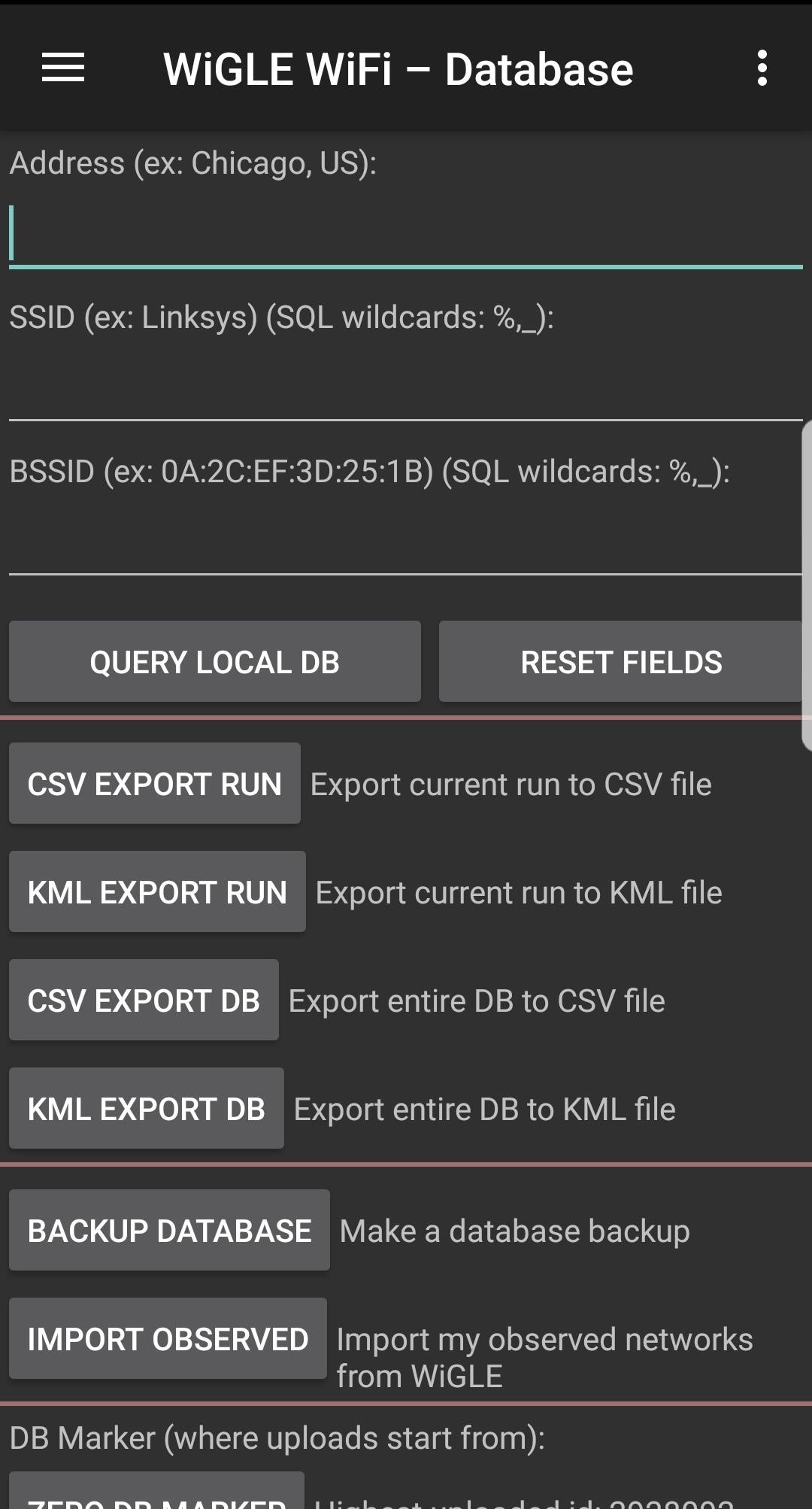
Maybe you want to work with your data directly. Navigating to the "Database" tab on the Wigle app shows the various options for exporting data from Wigle Wifi.
If you want to pull everything you've ever uploaded into one file, you can select "Import Observed." Doing this pulls from Wigle.net, so be prepared to wait a little for the download if you have a ton of networks. You can also use this tab to search network runs, although sometimes this functionality can be a little buggy.
Step 9Contributing to the Big Picture
Wigle.net works because of people contributing. If you feel like adding to the giant pool of knowledge that is Wigle.net (or you've got a competitive streak), consider adding to the community database to build a better OSINT tool for fellow wireless researchers.
There is a thriving community of wardrivers who compete to discover the most networks, and anyone can join! You can even create a team to rank up against other wardriving teams. With some users having discovered millions of new networks, competition is fierce for a place in wardriving history. Check out the "Rankings" menu item in the app.
It currently takes finding over 100,000 new (previously unknown to Wigle.net) Wi-Fi networks just to crack the top 500 users on Wigle's leaderboard, so be prepared to do some serious hunting to earn street cred in the wardriving community!
Conclusion
Whether you're wardriving for tactical network reconnaissance, to build a database of your city's Wi-Fi networks, or just to contribute to an exciting project, Wigle Wifi is a great tool to quickly learn about the wireless world around you.
Tactical wardriving, or warwalking, can give you a picture of a target's wireless infrastructure.